

IDE Setup
The Rocky VS Code extension gives you compile errors, column types, lineage, and the AI commands inside the editor. It does none of that work itself. It starts a language server (a background Rocky process that speaks the Language Server Protocol) and asks it every question:
VS Code stdio (LSP) Rocky engine ┌─────────────────┐ ┌──────────────────────┐ │ Rocky extension │ ─── you type ───────► │ rocky-lsp │ │ editor + panels │ │ (or `rocky lsp`) │ │ │ ◄── diagnostics, ──── │ recompiles the │ └─────────────────┘ types, lineage │ project incrementally│ └──────────────────────┘So the extension needs a Rocky binary it can reach. Section 1 installs the extension; section 2 points it at that binary.
To look at a project without an editor, use the browser UI (rocky serve --ui).
The extension source is in the monorepo at editors/vscode/.
1. Install the Extension
Section titled “1. Install the Extension”Pick one of four methods. Method A suits most users. Methods B, C, and D are for people who work on the extension itself.
Method A: Install from the VS Code Marketplace
Section titled “Method A: Install from the VS Code Marketplace”The extension is published on the VS Code Marketplace. Install it from VS Code:
- Open VS Code
- Go to Extensions (Cmd+Shift+X / Ctrl+Shift+X)
- Search for Rocky
- Click Install
Or install from the command line:
code --install-extension rocky-data.rockyVS Code updates the extension for you when a new version is published.
Method B: F5 Development Host (for contributors)
Section titled “Method B: F5 Development Host (for contributors)”Clone the monorepo and launch the extension in VS Code’s Extension Development Host:
git clone https://github.com/rocky-data/rocky.gitcd rocky/editors/vscodenpm installnpm run compileOpen the editors/vscode folder in VS Code, then press F5. VS Code launches a second window with the extension loaded. It picks up TypeScript changes on the next F5 launch.
Method C: Install from VSIX
Section titled “Method C: Install from VSIX”Build a .vsix package and install it directly:
cd rocky/editors/vscodenpm installnpm run compilenpx vsce packageThis writes a file like rocky-<version>.vsix. Install it in VS Code:
code --install-extension rocky-<version>.vsixOr open VS Code, go to Extensions > … (three dots menu) > Install from VSIX and select the file.
Method D: Symlink for Local Development
Section titled “Method D: Symlink for Local Development”If you change the extension often, symlink the compiled output into VS Code’s extensions directory:
cd rocky/editors/vscodenpm installnpm run compile
# macOS / Linuxln -s "$(pwd)" ~/.vscode/extensions/rocky-data.rocky-<version>
# Restart VS Code
You then skip the VSIX rebuild on every change. Run npm run compile after you edit a TypeScript file, then reload the VS Code window (Cmd+Shift+P > Developer: Reload Window).
2. Configure the Rocky Binary Path
Section titled “2. Configure the Rocky Binary Path”The extension starts the language server itself. It looks for a standalone rocky-lsp binary first, because the install scripts place rocky-lsp next to rocky. If it finds none, it runs rocky lsp instead. It resolves both names from your PATH. If Rocky is installed somewhere else, set the path yourself:
- Open VS Code Settings (Cmd+, / Ctrl+,)
- Search for
rocky.server.path - Set it to the full path of your Rocky binary
{ "rocky.server.path": "/usr/local/bin/rocky"}Or in settings.json:
{ "rocky.server.path": "${workspaceFolder}/target/release/rocky"}Extra arguments
Section titled “Extra arguments”rocky.server.extraArgs adds arguments after rocky lsp. The standalone rocky-lsp binary ignores its arguments, so this setting has effect only when the extension falls back to rocky lsp.
All extension settings
Section titled “All extension settings”| Setting | Default | Description |
|---|---|---|
rocky.server.path |
"rocky" |
Path to the Rocky binary |
rocky.server.extraArgs |
[] |
Extra arguments passed to rocky lsp |
rocky.inlayHints.enabled |
true |
Show inferred column types inline |
rocky.diagnostics.enabled |
true |
Show inline compile errors and warnings (set false to silence all Rocky diagnostics without uninstalling) |
rocky.costAnnotations.enabled |
true |
Show inline per-model cost annotations above model files (fetched from rocky optimize) |
rocky.statusBar.segments |
[] |
Extra status-bar segments after the server state. Any of warehouse, lastRunAge, driftCount, branchState |
rocky.preview.rowLimit |
100 |
Maximum rows returned by Rocky: Preview Model Rows |
rocky.preview.allowWarehouse |
false |
Allow row previews to run against a non-DuckDB warehouse (may incur query cost; each run is confirmed) |
3. Verify the Connection
Section titled “3. Verify the Connection”Install the extension and set the binary path, then check that the server starts:
- Open a Rocky project in VS Code (a directory containing
rocky.tomlormodels/) - Open any
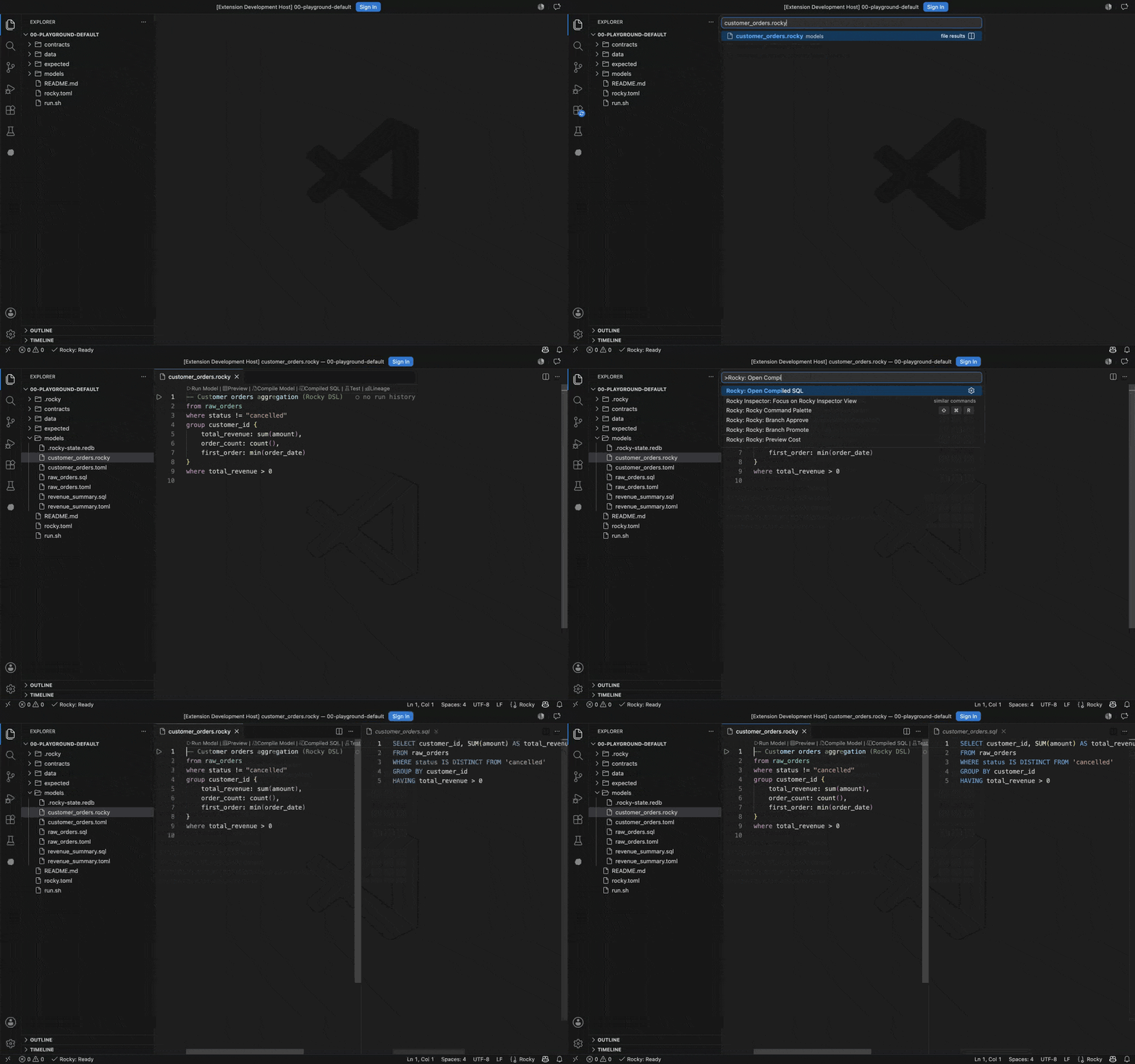
.rockyor.sqlfile in themodels/directory - Check the status bar at the bottom left – you should see Rocky: Ready
If the status bar shows Rocky: Failed, open the Output panel (View > Output > select Rocky Language Server from the dropdown). It carries the error.
4. Tour of Features
Section titled “4. Tour of Features”Hover Information
Section titled “Hover Information”Hover over any column name to see its inferred type and source lineage:
- Column type: The type the compiler’s type checker resolved (for example
Int64,String,Decimal) - Source lineage: The upstream model and column this value comes from
- Intent: The model’s plain-English description, when its TOML config has an
intentfield
Hover works on:
- Column references in SELECT clauses
- Table references in FROM/JOIN clauses
- Model names in Rocky DSL
fromexpressions
Autocompletion
Section titled “Autocompletion”The language server completes what you type, using the compiled project:
- Column names: In a SELECT, WHERE, or GROUP BY clause, it suggests columns from the referenced tables
- Model names: In a FROM clause, or in
depends_onin a TOML file, it suggests models in the project - SQL functions: After a function name and
(, it shows parameter hints - Keywords: It suggests SQL and Rocky DSL keywords that fit the cursor position
Completions appear as you type. Press Ctrl+Space to ask for them.
Go to Definition
Section titled “Go to Definition”Cmd+Click (or F12) on a model reference to jump to its definition:
- Clicking a model name in a FROM clause opens the model’s SQL file
- Clicking a model name in
depends_onin a TOML file opens that model - Clicking a column name traces lineage to the upstream model where it originates
Find All References
Section titled “Find All References”Shift+F12 on a model name shows all places it is referenced:
- Other models that depend on it (via
depends_on) - SQL files that reference it in FROM/JOIN clauses
Rename Symbol
Section titled “Rename Symbol”F2 on a model name renames it across the project. The rename:
- Updates the TOML
namefield - Updates every
depends_onreference in other models - Updates SQL references
Diagnostics
Section titled “Diagnostics”Type errors, unresolved references, and warnings appear as you type, after a 300ms pause. The Problems panel (View > Problems) groups every diagnostic by file.
Document Symbols
Section titled “Document Symbols”Open the Outline panel (View > Outline) to see the model structure: model name, intent, columns with types, and CTEs.
Signature Help
Section titled “Signature Help”Type a function name followed by ( to see parameter hints:
SUBSTRING(string, start, length) ^^^^^^ active parameter5. Inlay Hints
Section titled “5. Inlay Hints”An inlay hint is a type annotation the editor draws inline. Hints show each column’s inferred type in your SQL and Rocky DSL files, so you do not have to hover.
Turn hints on or off:
{ "rocky.inlayHints.enabled": true}With hints on, the types appear beside the columns:
SELECT order_id, -- : Int64 customer_name, -- : String total_amount, -- : Decimal order_date -- : DateFROM stg_ordersHints update as you edit.
6. The Rocky Inspector
Section titled “6. The Rocky Inspector”The Rocky Inspector is a bottom-panel view. It shows everything Rocky knows about the model in the active editor. Open it from Cmd+Shift+P > Rocky: Open in Inspector. While the panel is visible it follows the active editor, so switching model files switches the Inspector. Clicking a node in the lineage canvas also retargets it.
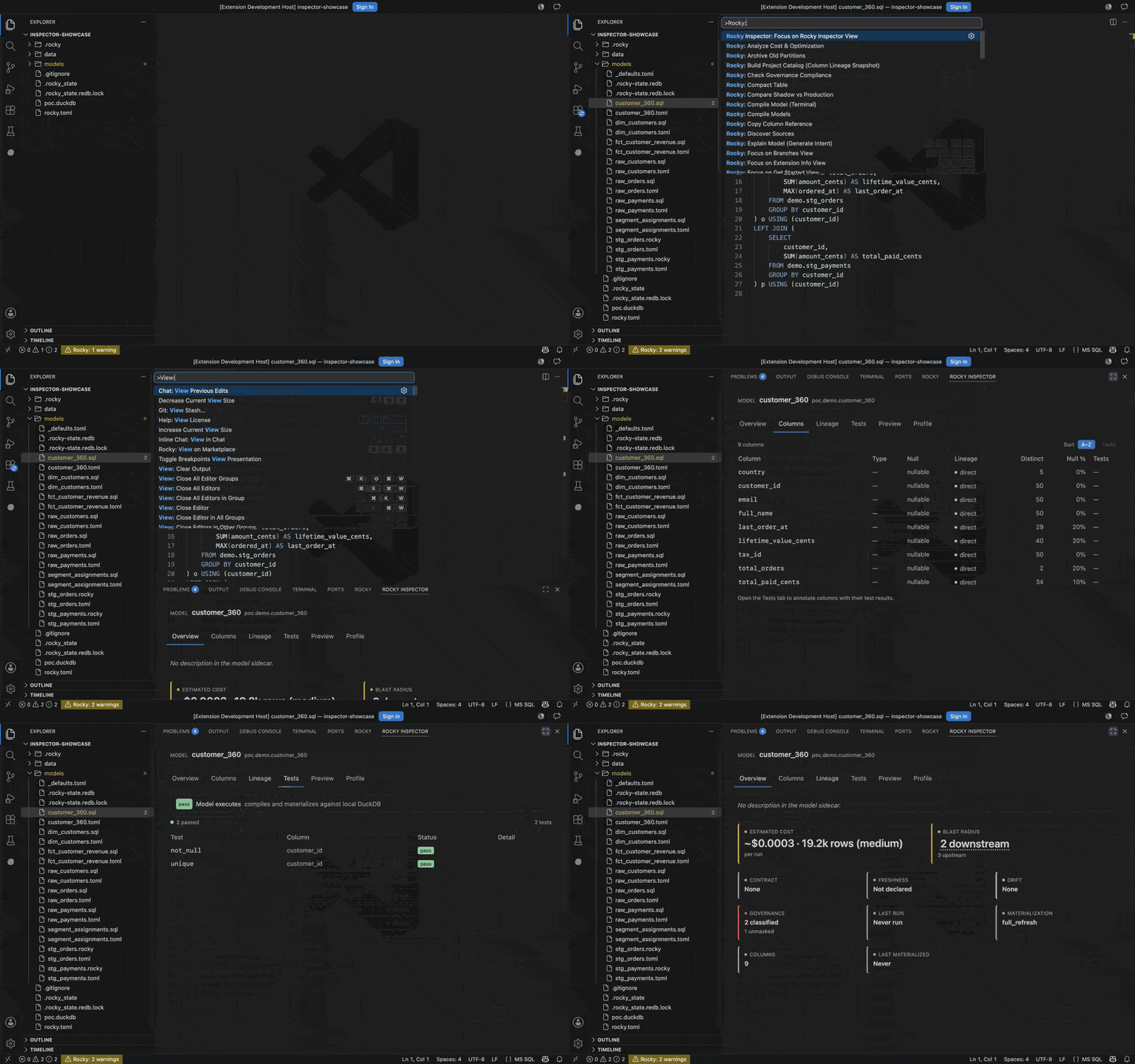
Each tab covers one concern and runs one Rocky CLI command. A tab whose data is not available yet says so rather than failing:
- Overview – cost, blast radius, drift, governance, and freshness for the model in one place
- Columns – the model’s columns with inferred types, tracing each one’s upstream lineage
- Lineage – the interactive lineage canvas (below)
- Tests – declarative
[[tests]]assertions plus the model-execution check (rocky test) - Preview – a sample of the model’s output rows (
rocky preview rows); DuckDB runs locally, other warehouses requirerocky.preview.allowWarehouse - Profile – per-column profiling of the materialized table (
rocky profile, DuckDB-only)
Lineage canvas
Section titled “Lineage canvas”The Lineage tab draws the project’s column-level graph as an interactive canvas. Lineage is the map of which columns feed which, traced through every transformation (see the glossary). Open the canvas directly with Cmd+Shift+P > Rocky: Show Model Lineage, framed on the current model.
- Opens on the current model’s neighbourhood, and expands out to the whole project
- Built from
rocky catalog(assets and dependencies) androcky compile(per-model materialization) - Draws overlays on the graph itself: cost, freshness, drift, governance, breaking changes against the base ref, and the last run
- Right-click a node for actions scoped to that model: open its file, refocus the graph, or run an AI action – explain (generate intent), generate tests, draft a data-grounded contract, or build a downstream model
7. AI Commands
Section titled “7. AI Commands”The extension runs Rocky’s AI commands from the Command Palette. Each one needs ANTHROPIC_API_KEY set in your environment.
Generate Model from Intent
Section titled “Generate Model from Intent”Cmd+Shift+P > Rocky: Generate Model from Intent
An input box opens. Describe the model you want:
monthly revenue per customer from the orders table, filtered to 2024Rocky generates the model code, compiles it, and opens it in a new editor tab. If the compile fails, Rocky sends the errors back to the model and retries, up to 3 attempts in total.
AI via the command line
Section titled “AI via the command line”The extension runs rocky ai "<intent>" for you. The same command works in a terminal:
rocky ai "top 10 customers by lifetime value from customer_orders"
Other AI commands
Section titled “Other AI commands”Three more AI commands work on models you already have. Each writes its result back into the project:
- Rocky: Sync Models (AI Schema Change Detection) – reconcile a model against upstream schema changes, guided by its stored intent (
rocky ai-sync) - Rocky: Explain Model (Generate Intent) – write a plain-English
intentfor a model from its code (rocky ai-explain) - Rocky: Generate Tests from Intent – derive
[[tests]]assertions from a model’s intent (rocky ai-test)
You can also reach these actions by right-clicking a node in the Inspector’s lineage canvas.
Main commands
Section titled “Main commands”The extension adds more commands than this table lists. Type Rocky: in the Command Palette to see them all.
| Command | Description |
|---|---|
| Rocky: Generate Model from Intent | Generate a model from a natural language description (rocky ai) |
| Rocky: Sync Models (AI Schema Change Detection) | Detect upstream schema changes and propose updates (rocky ai-sync) |
| Rocky: Explain Model (Generate Intent) | Generate an intent description from a model’s code (rocky ai-explain) |
| Rocky: Generate Tests from Intent | Generate test assertions from a model’s intent (rocky ai-test) |
| Rocky: Open in Inspector | Open the active model in the Rocky Inspector |
| Rocky: Show Model Lineage | Open the Inspector’s lineage canvas, framed on the current model |
| Rocky: Restart Language Server | Restart the language server (fixes stale state) |
Access via the Command Palette (Cmd+Shift+P / Ctrl+Shift+P).
8. File Watchers
Section titled “8. File Watchers”The extension watches these file patterns:
| Pattern | Effect |
|---|---|
**/*.rocky |
Recompile on save |
**/*.toml |
Recompile on save (picks up config and dependency changes) |
**/models/**/*.sql |
Recompile on save |
When a watched file changes, the language server recompiles the project incrementally. The Problems panel updates as it goes.
9. Troubleshooting
Section titled “9. Troubleshooting”“Rocky: Failed” in status bar
Section titled ““Rocky: Failed” in status bar”- Check that the
rockybinary exists at the configured path - Run
rocky --versionin a terminal to confirm the binary works - Open the Output panel and select Rocky Language Server to read the error
- Run
rocky lspin a terminal and see whether it starts
No completions or hover
Section titled “No completions or hover”- Confirm the workspace root has a
models/directory or.rockyfiles - Run
rocky compilein a terminal and confirm the project compiles - Restart the language server: Cmd+Shift+P > Rocky: Restart Language Server
Diagnostics not updating
Section titled “Diagnostics not updating”- Look at the status bar. An error count there means the server is running
- Save the file. A save triggers a recompile
- Restart the language server if the diagnostics stay stale
Extension not activating
Section titled “Extension not activating”The extension starts when any one of these is true:
- A file with the
.rockyextension is open - The workspace contains
**/*.rockyfiles - The workspace contains a
rocky.tomlfile
Otherwise it stays inactive.
Performance with large projects
Section titled “Performance with large projects”The first compile of a project with hundreds of models takes a few seconds. Later recompiles are incremental and faster. If the editor feels slow:
- Time
rocky compilein a terminal. Over 5 seconds is a sign the project should be split into sub-projects - Watch fewer files: set
files.watcherExcludein VS Code settings